Glass button with reflection
author: Sylwester Los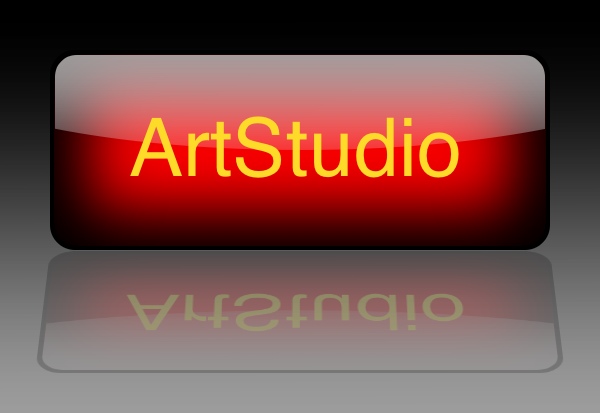
Let's create beautiful glass button with mirror reflection.
1. Tap File->New Image, create image with size 500x200, set background to white, name the only layer "Background".
2. Create a new layer, tap Select->All, then round selection corners: Select->Round Corners, set Radius(%): 25; Fill rounded rectangle with black color.
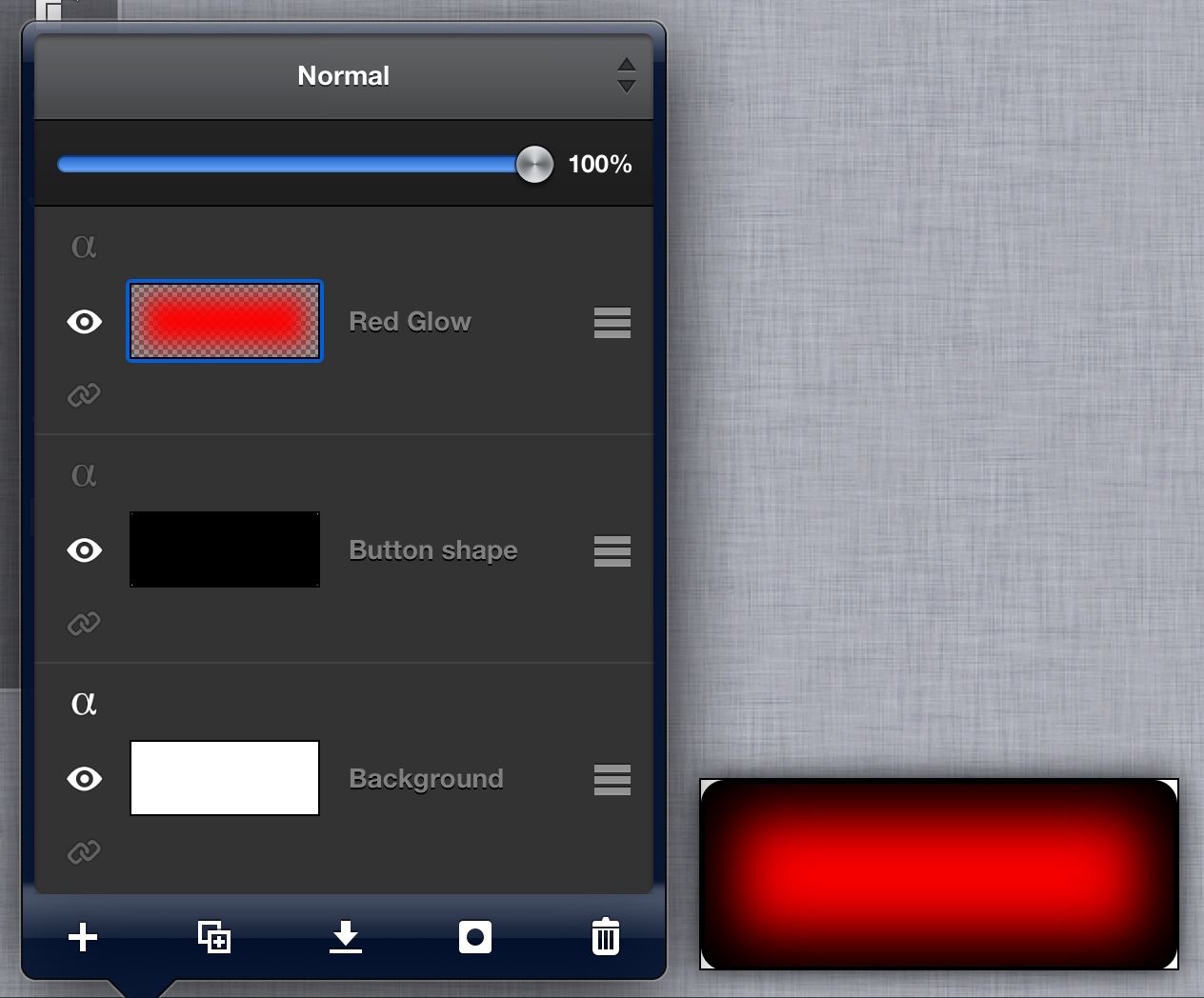
3. With selection active create a new layer, name it "Red Glow". Shrink a selection by tapping Select->Contract, set Radius:40. Fill seelction with red color (#ff0000). Tap Select->Deselect. Now apply Gaussian Blur (Filters->Blur->Gaussian Blur) with horizontal radius and vertical radius set to 100.:
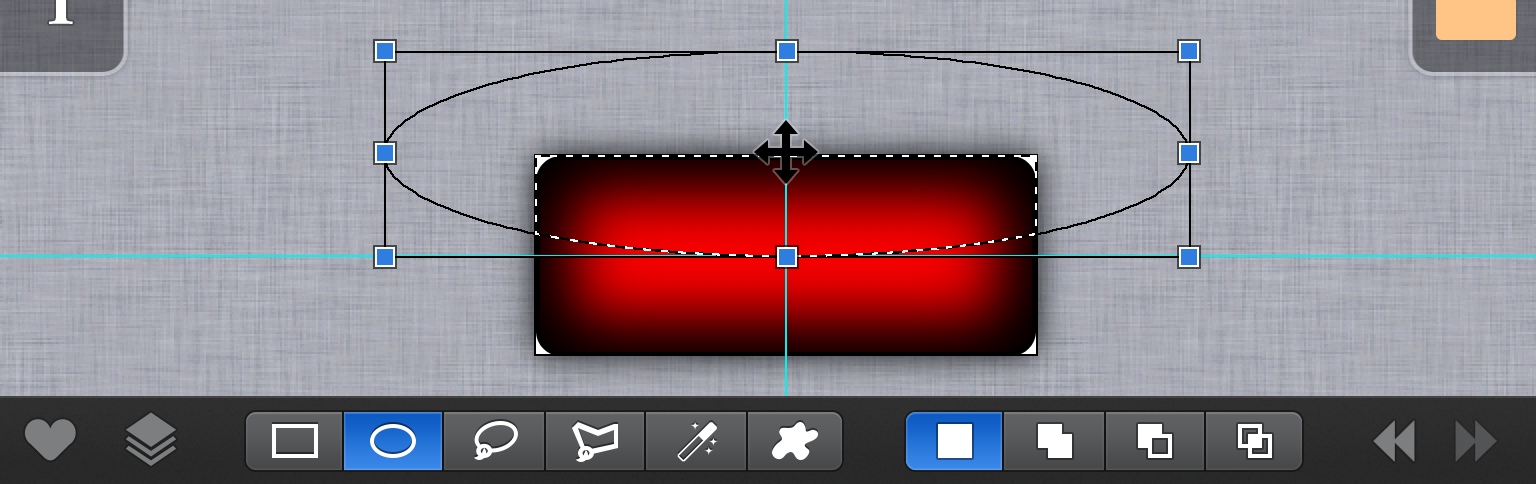
4. To make the button more real, let's add a light gloss. Create a new layer, name it "White gloss". Tap on "Select" tool on the left toolbar,then in the bottom toolbar choose "Ellipse". Tap View->Guidelines->Auto-add, and choose <Add from image center> - this will help us to put a gloss in the center. Draw ellipse selection similar to this:
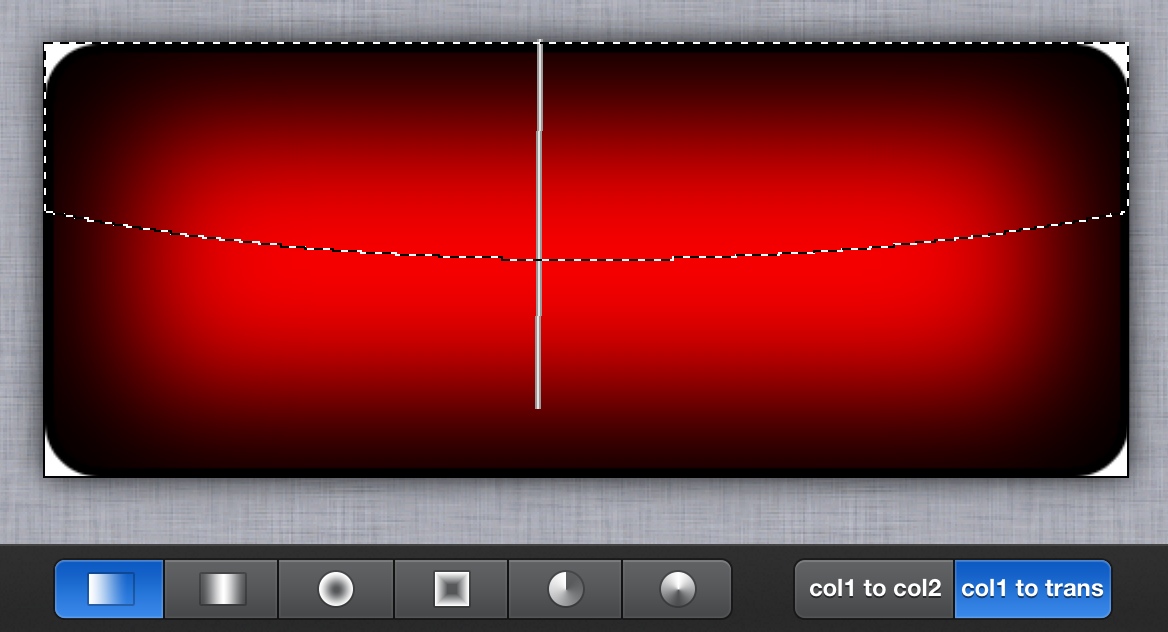
5. Choose "gradient" tool from the right toolbar, set Color 1 to white, set gradient mode "col1 to trans". Fill the selection from top to bottom, like in this screen:
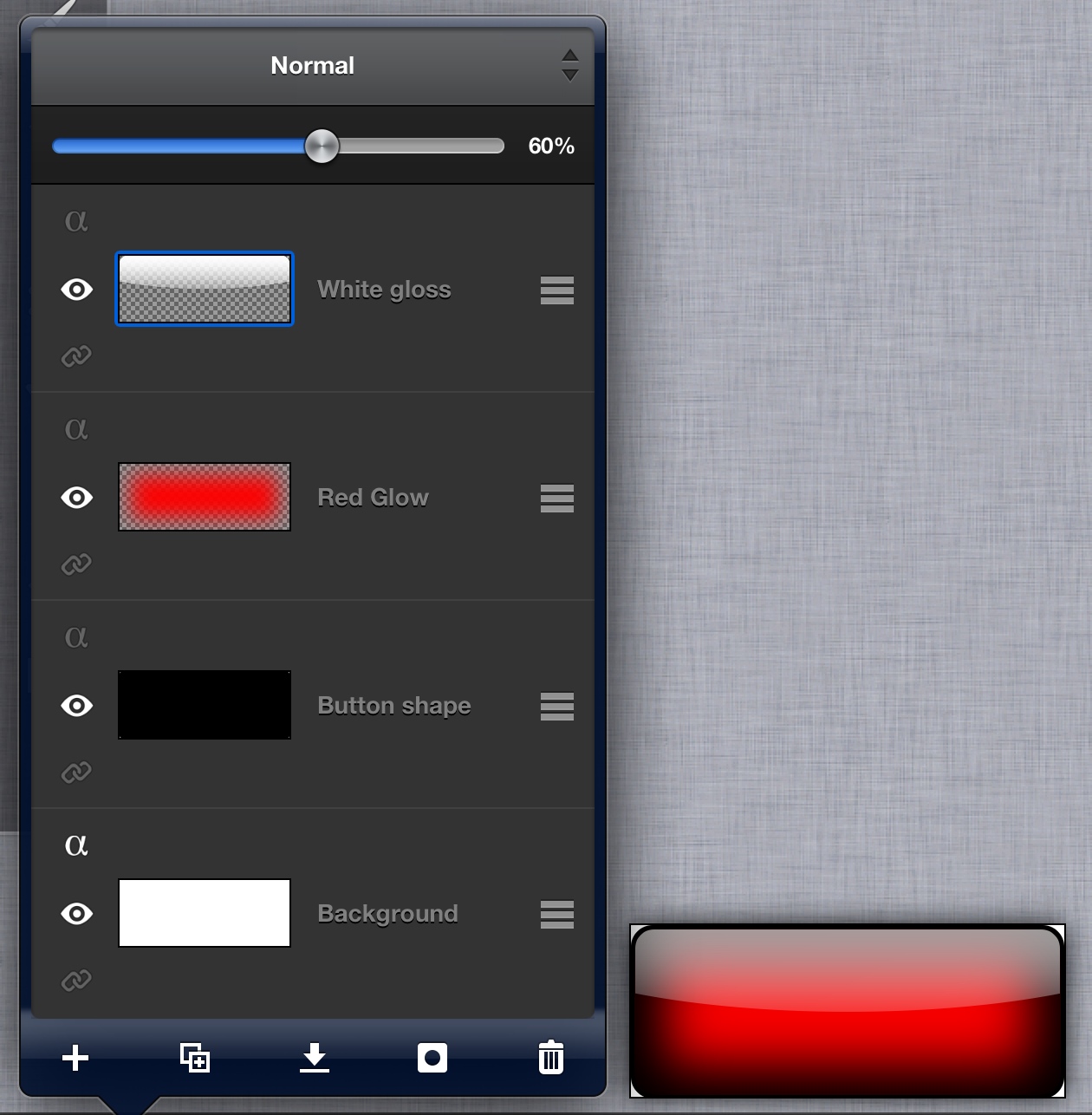
6. Set transparency of "White gloss" layer to about 60%. Tap Select->Deselect. We have to trim the gloss a bit to make nice black border of the button. Activate "Button shape" layer, tap Select->Alpha to selection. Tap Select->Contract, and type 5. Tap Select->Inverse. Now activate "White Gloss" layer, and tap Edit->Clear selection. Button itself is ready:
7. Now let's add a label, i typed "ArtStudio", and choosed font:Helvetica, size:80, color: #FEDA29.
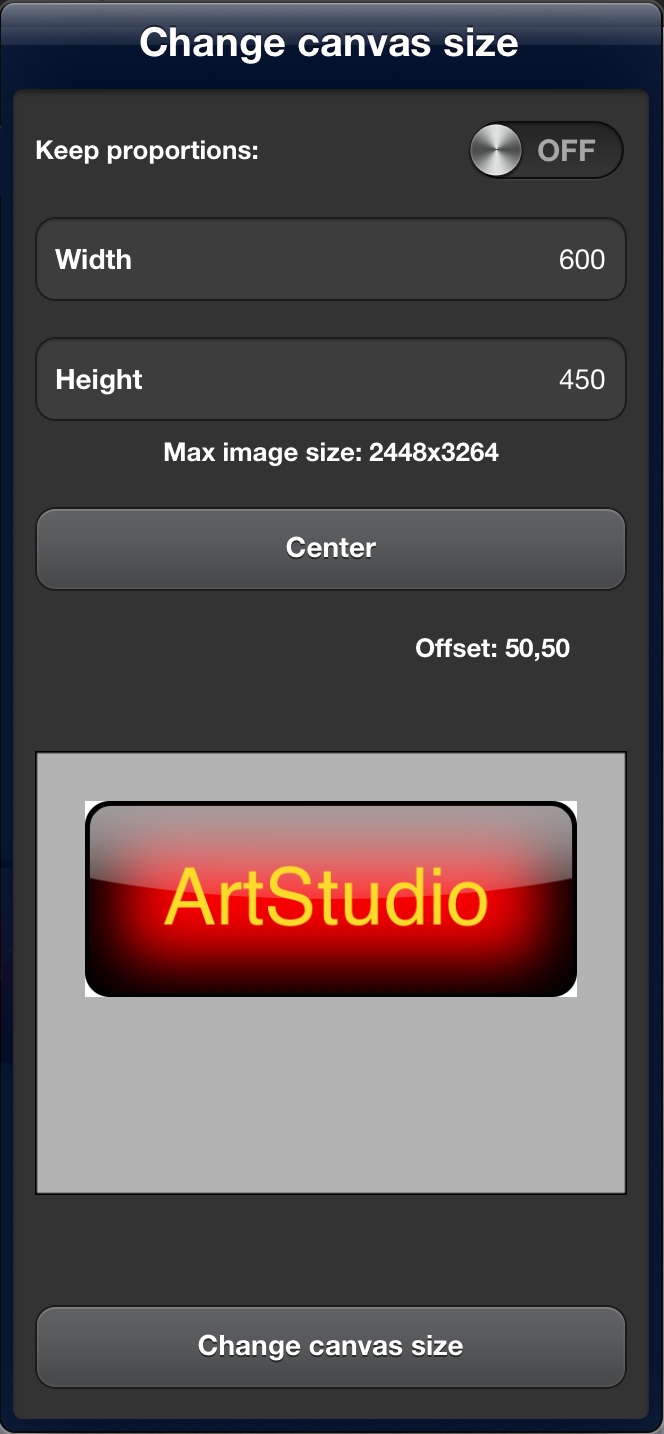
8. We have to increase canvas size to make space for a reflection. Tap Image->Canvas Size, turn off "Keep proportions", and set Width:600, Height:450, and move the image to set offset:50,50.
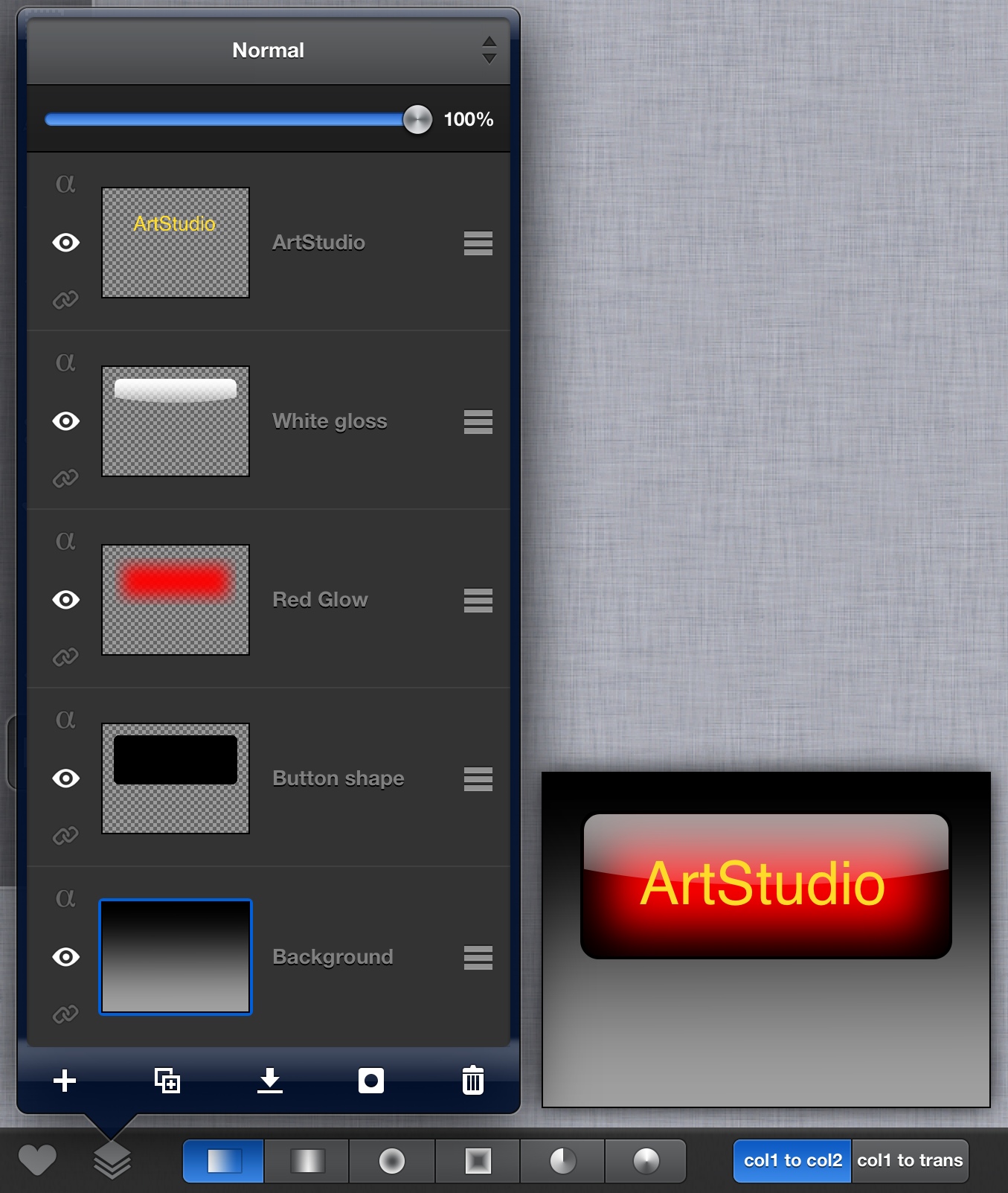
9. Activate "Background button" and turn off its "lock alpha" property. Choose gradient tool, set mode to "col1 to col2", set color 1 to black and color 2 to #A0A0A0, and fill layer from top edge to bottom edge..
10. The last things is creating a reflection. Open Layers popover and hide "Background" layer. Then merge visible layers. Duplicate upper layer ("Button shape"). Name new layer "Reflection" and set its opacity to 20%. Tap Layer->Flip->Flip vertical. Now use Edit->Distort layer... option to make it looking 3d:
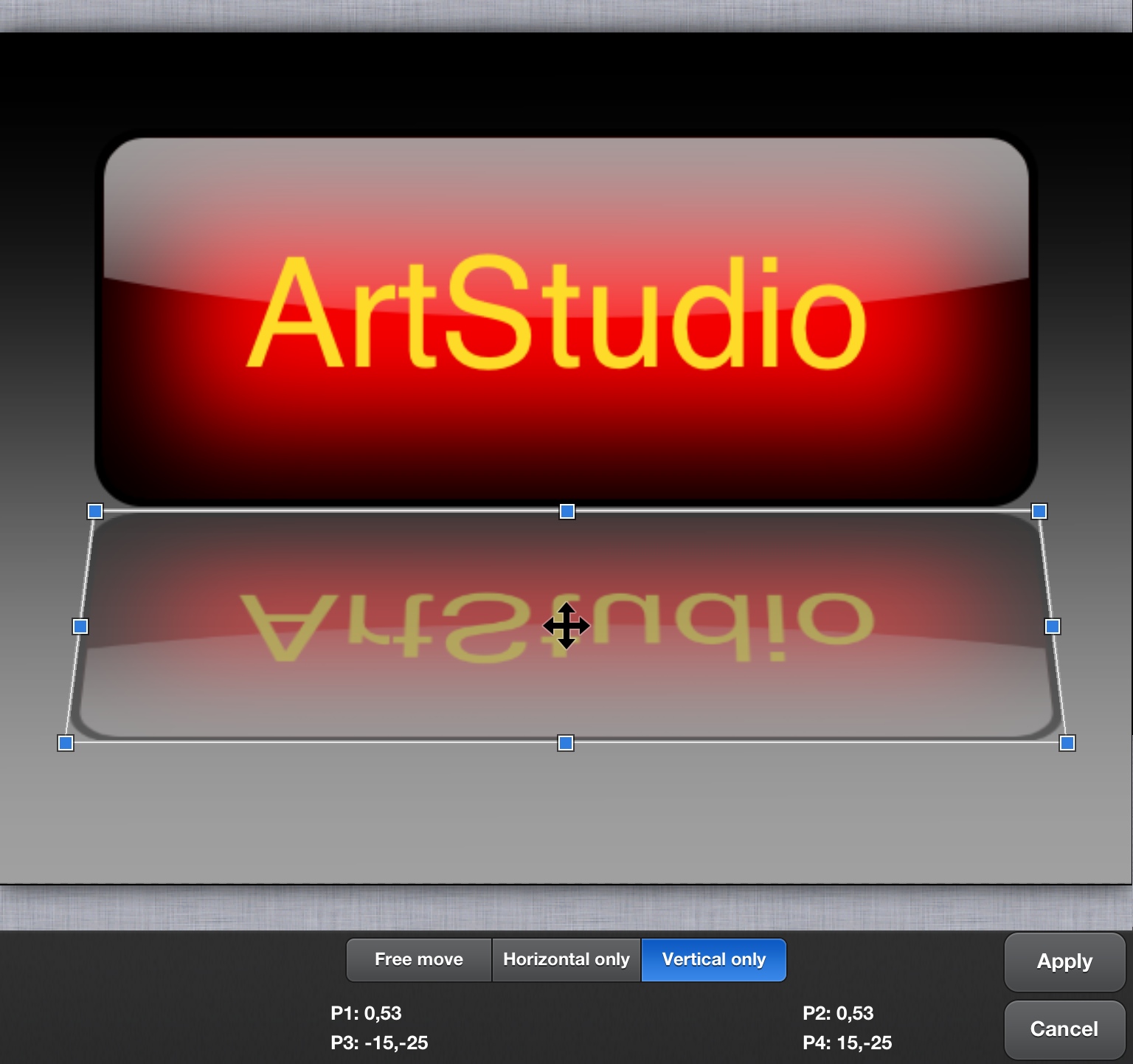
11. You can now fit reflection to button by moving it move/down (Edit->Transform layer->move), and trim a canvas to make make all borders similar.