Hot Fire Text
author: Sylwester Los
This tutorials show how to create amazing fire flames on text using few simple tricks.
1. Tap File->New Image, create image with size 640x640, set background to white. After creating it fill background layer with black. 2. Select Text tool, tap anywhere on canvas on type "FIRE", or any other text you want. I used font HoeflerText-Black and size: 180.
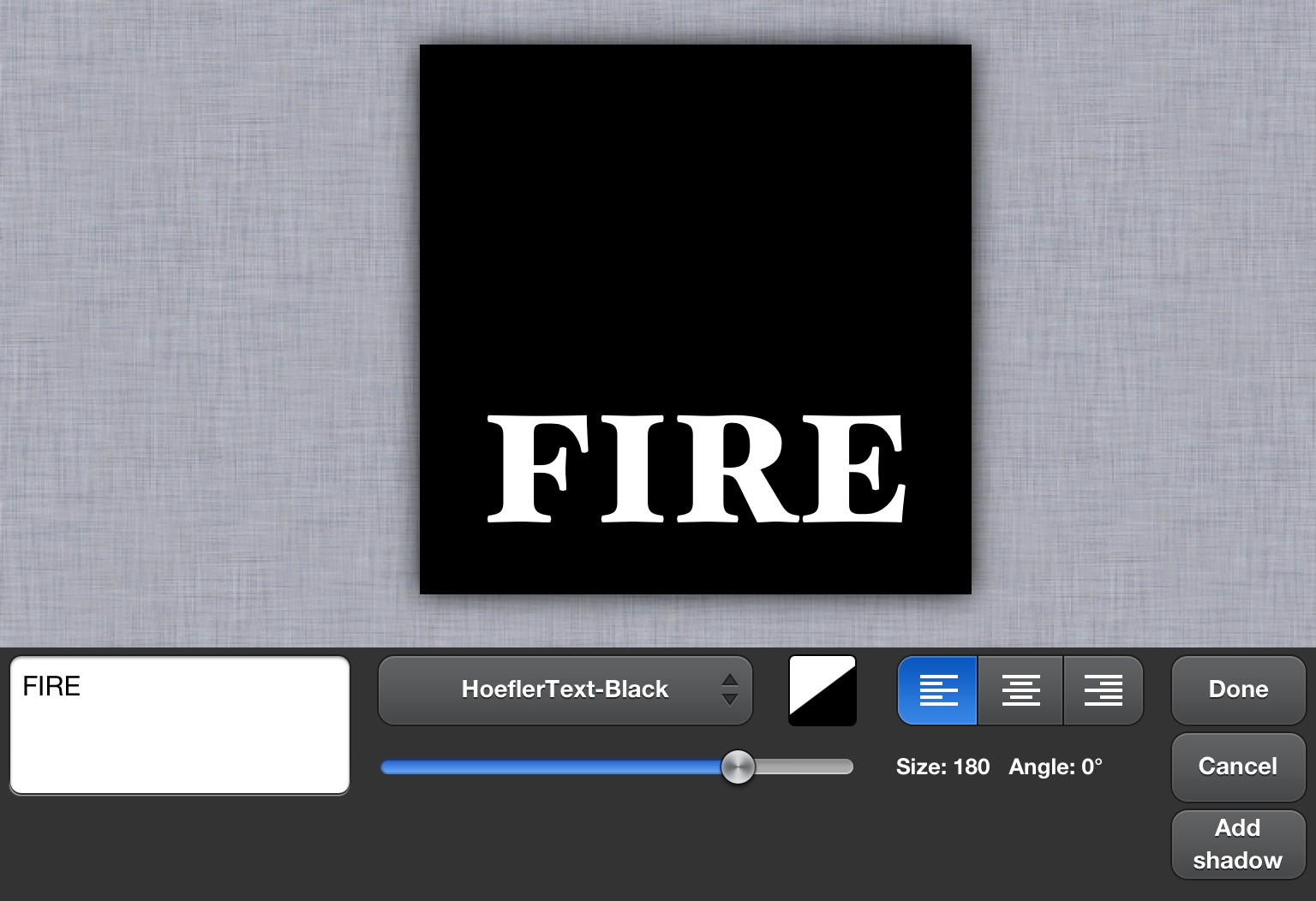
3. Make sure Text layer is active, merge Layer with Black background

4. Let's start creating flames. Tap Filters->Stylize...->Wind..., set Wind type: Normal, Direction: Top, Density:100, Min length: 65, Max length: 85.
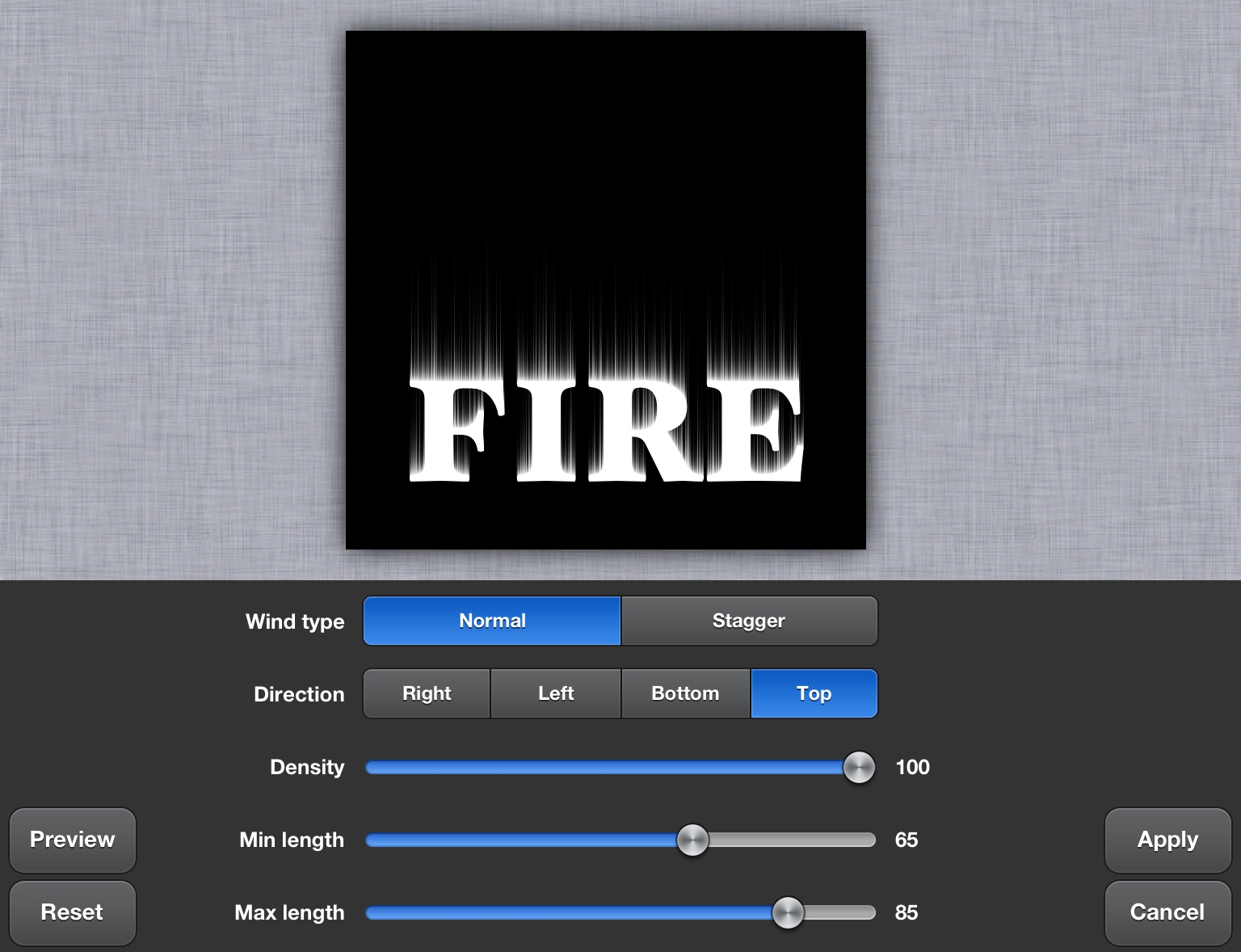
5. Tap Filter->Blur...->Gaussian blur, set both Radiuses:7.
6. Now let's add main, bigger flames. Tap Filter->Distort...->Elastify... (before that you can select part with text only to see bigger preview in ELastify) Set Type: 1st (Hand icon), Brush size: 15, Brush Strength: 50. Smear top of the letter upward in few places:

7. Use Elastify... again, change Brush Size: 10 Smear left and right letter edges to create smaller side flames:
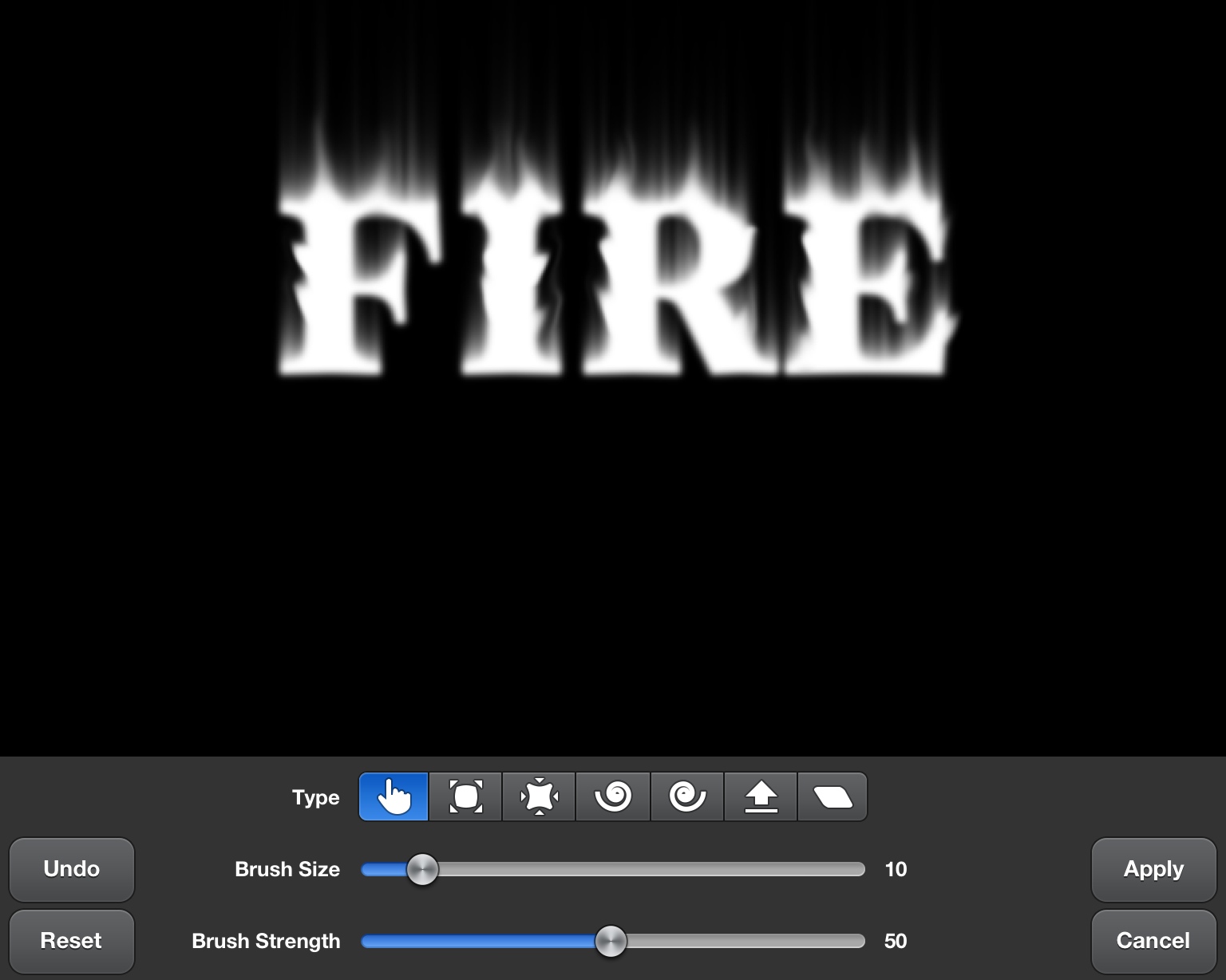
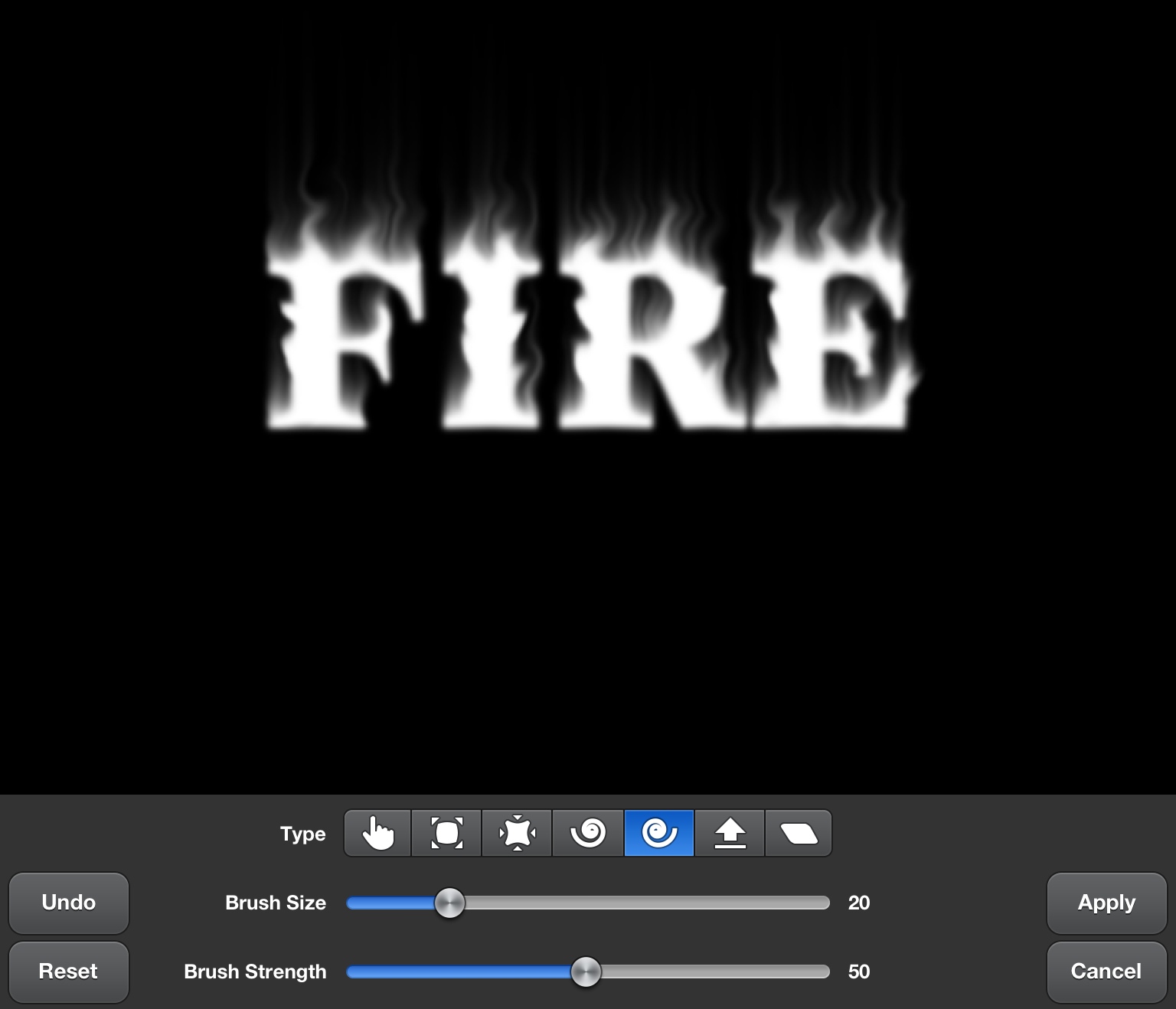
8. Use Elastify... one more time, set Brush Size: 20 Use elastify types: Twirl (4th icon), Twirl (5th icon) CCW, Expand (2nd icon) to make flames more real:
9. Now colorize the fire. Then open Adjust->Curves..., and set Red, Green, Blue curves like this:
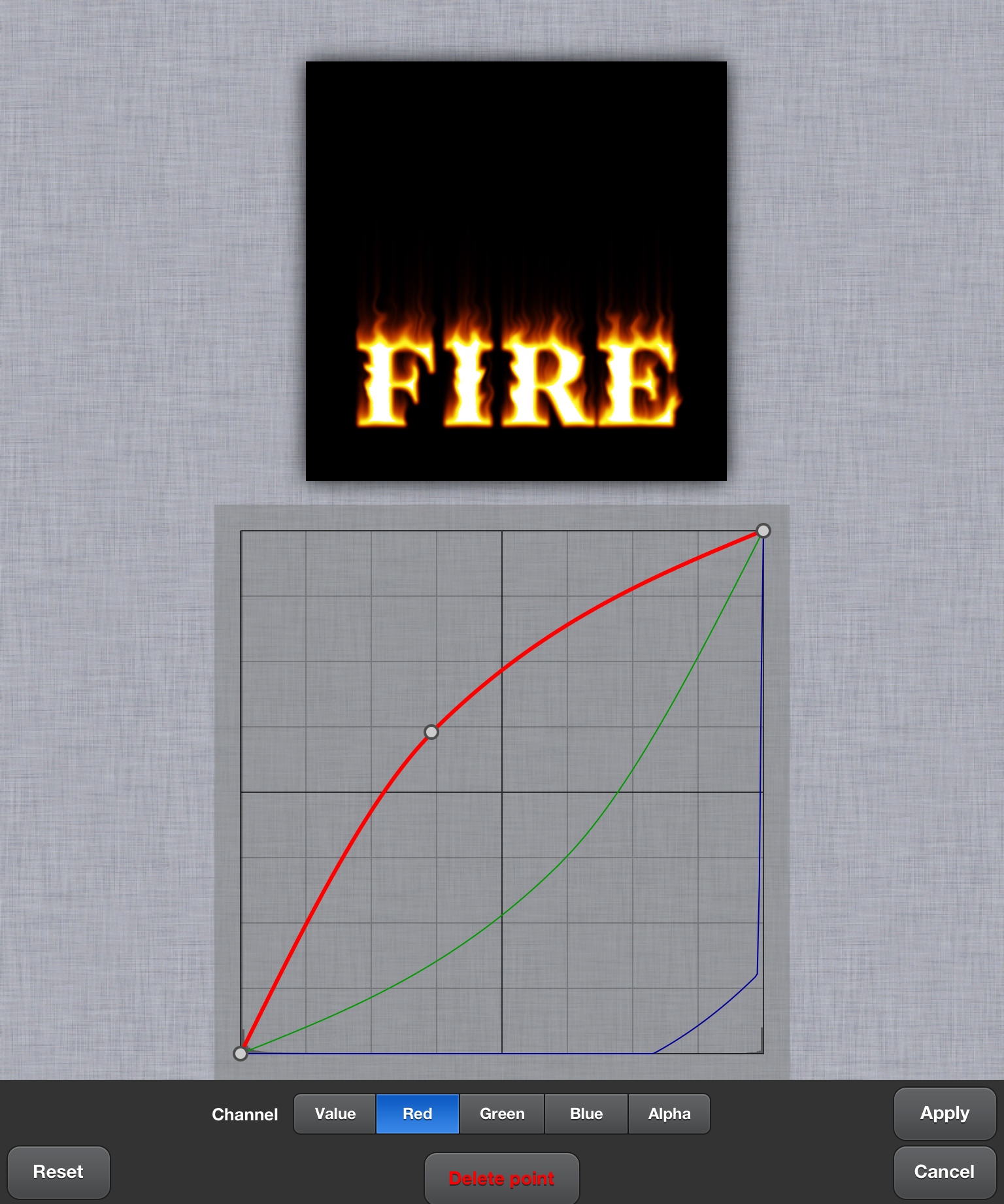
10. Finally crop image, here is the final result: