Engraved text with inner shadow
author: Sylwester Los
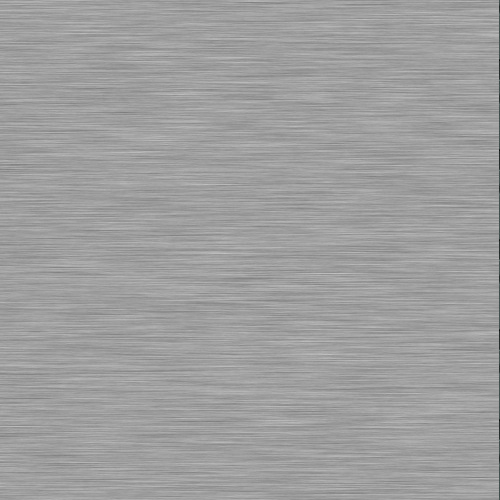
One more tutorial with amazing engraved text with inner shadow. We will need two textures: circles texture and metal texture. Both textures were created in ArtStudio, check tutorial how to create metal texture in ArtStudio. The key to craete a circles texture is using filters: Filters->Render->Pattern and Filters->Stylize->Emboss.

1. Open downloaded circles texture as a new image - tap File->Import, choose "Create new image" option, and tap <Import from 'Photos'> (if you saved it in Photos), or <Paste from clipboard> (if you copied it to clipboard). Open layers and change layer name to "Background".
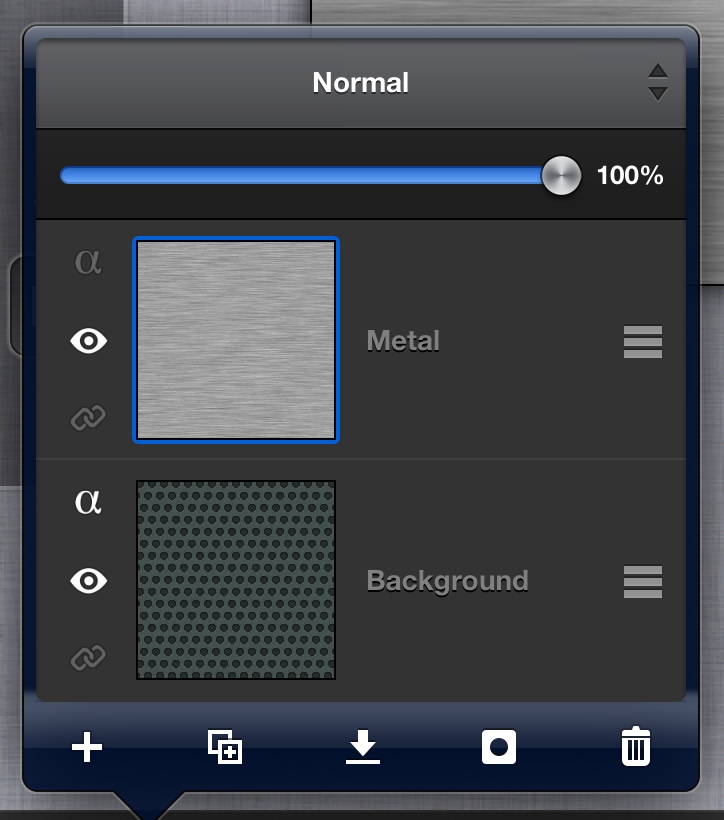
2. Open downloaded metal texture as a new layer, name it "Metal".
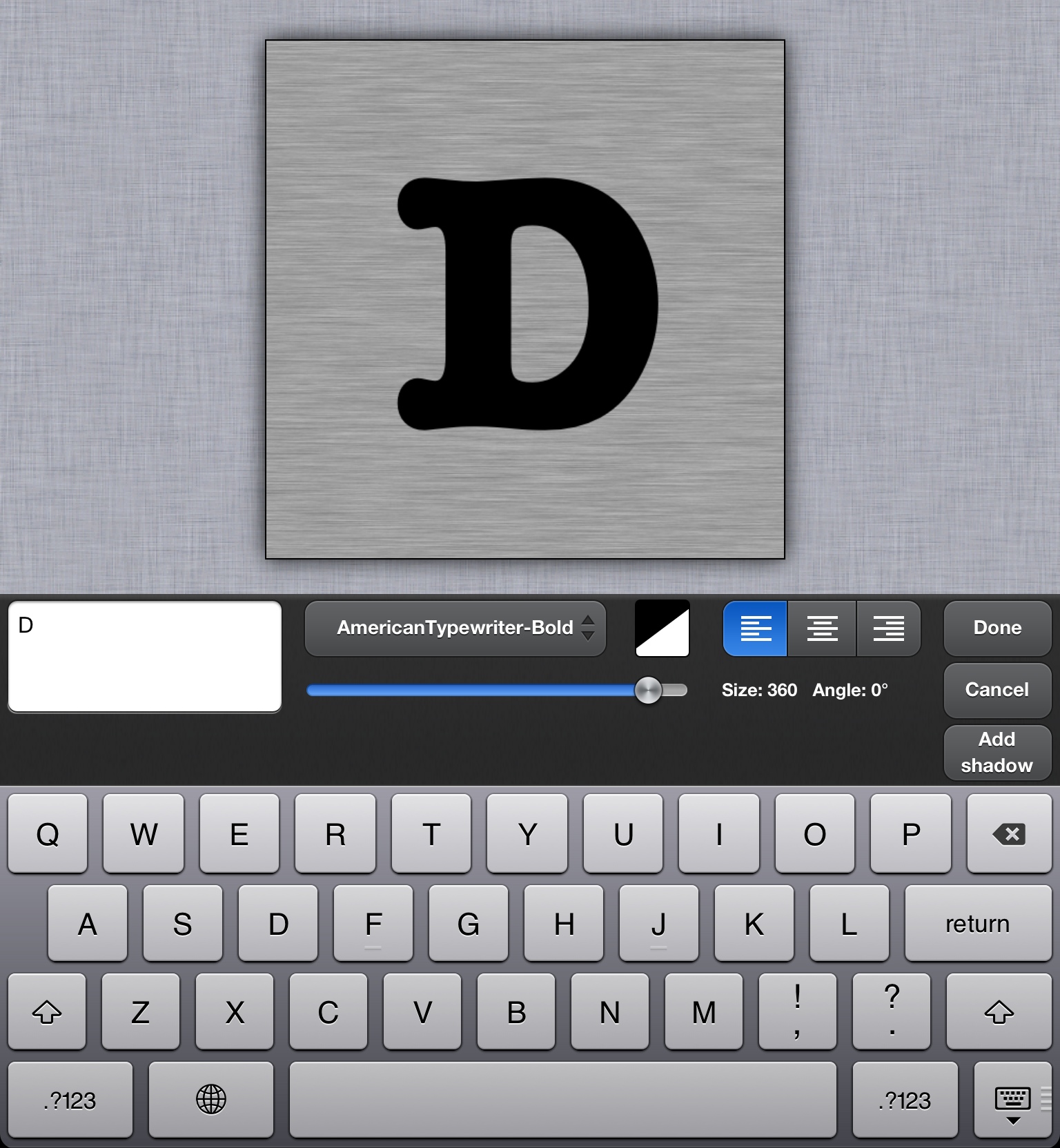
3. Set Color 1 to black, choose "Text" tool from left toolbar, and tap anywhere on canvas to create a text. Type any text, we typed just big "D" with the following settings:
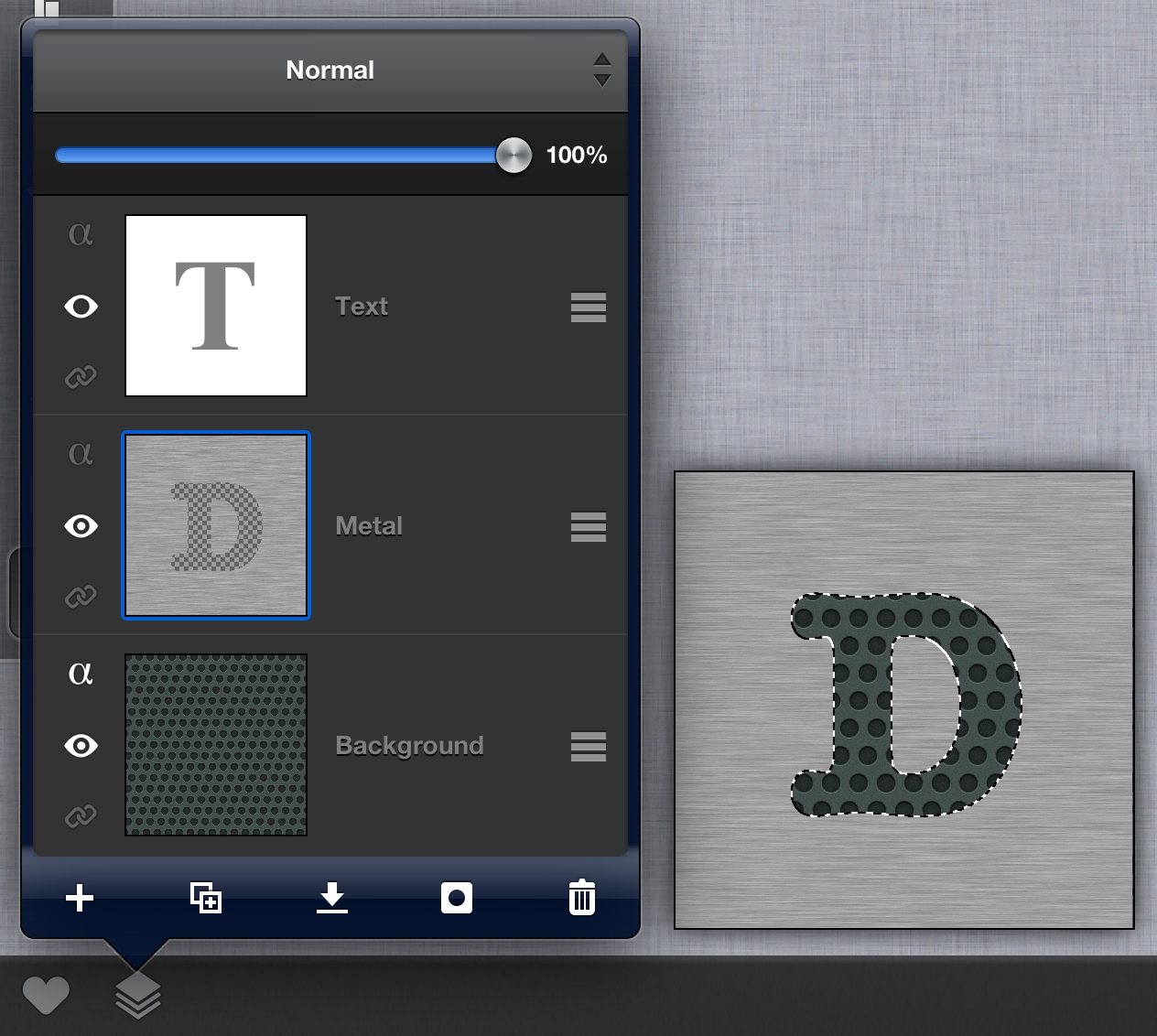
4. Name a text layer "Text". Make sure it is an active layer. Tap Select->Alpha to selection. Now activate "Metal" layer, and tap Edit->Clear selection. Finally hide "Text" layer. We cut off text from Metal texture:
5. Create a new layer, place it below "Metal" layer. With selection still active, tap Filter->Stylize->Drop Shadow, and use the following settings:
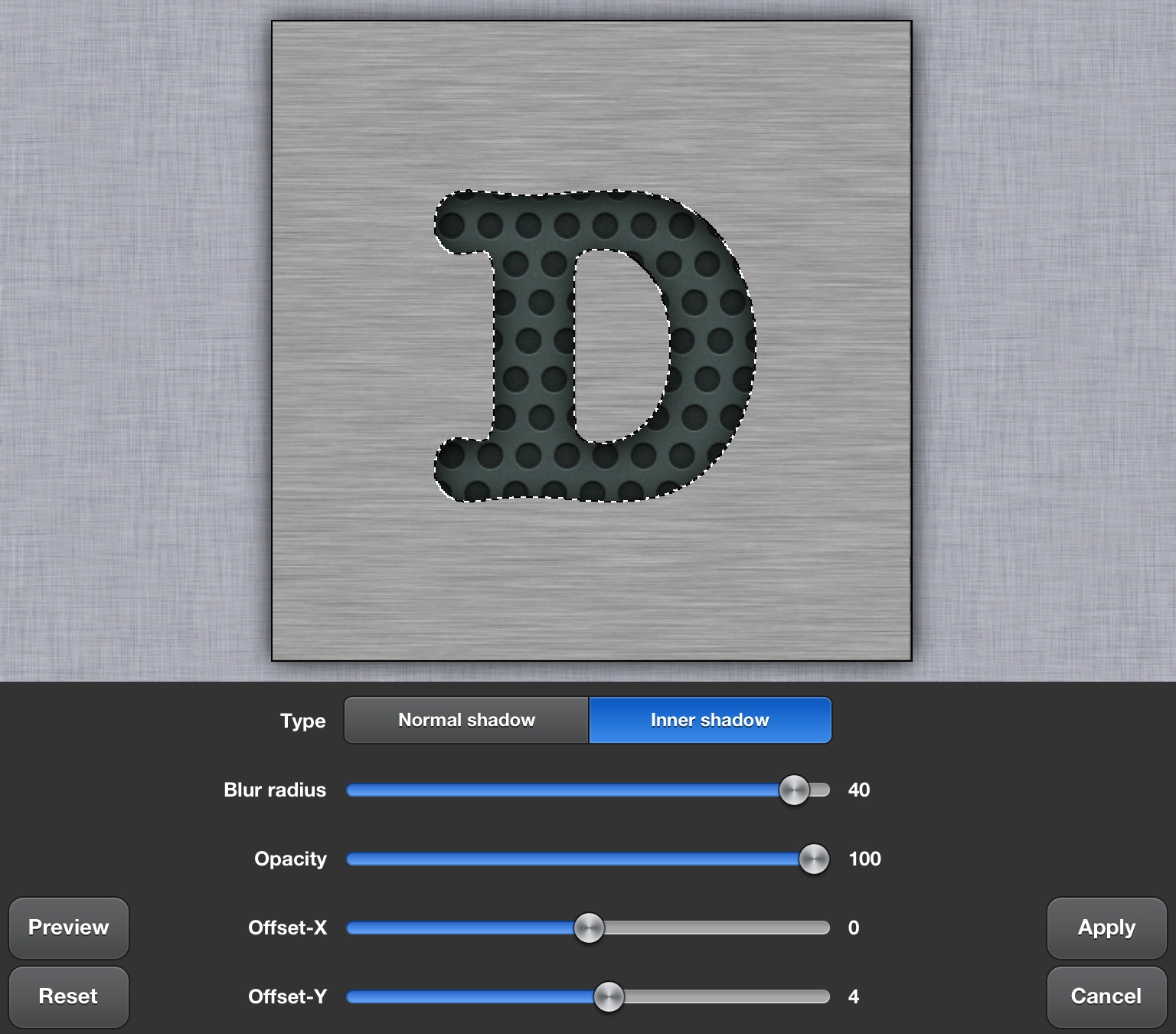
6. Name new layer "Shadow". Tap Select->Deselect. Shadow is too weak, so duplicate "Shadow" layer, and immediately Merge it down. We have a nice inner shadow:
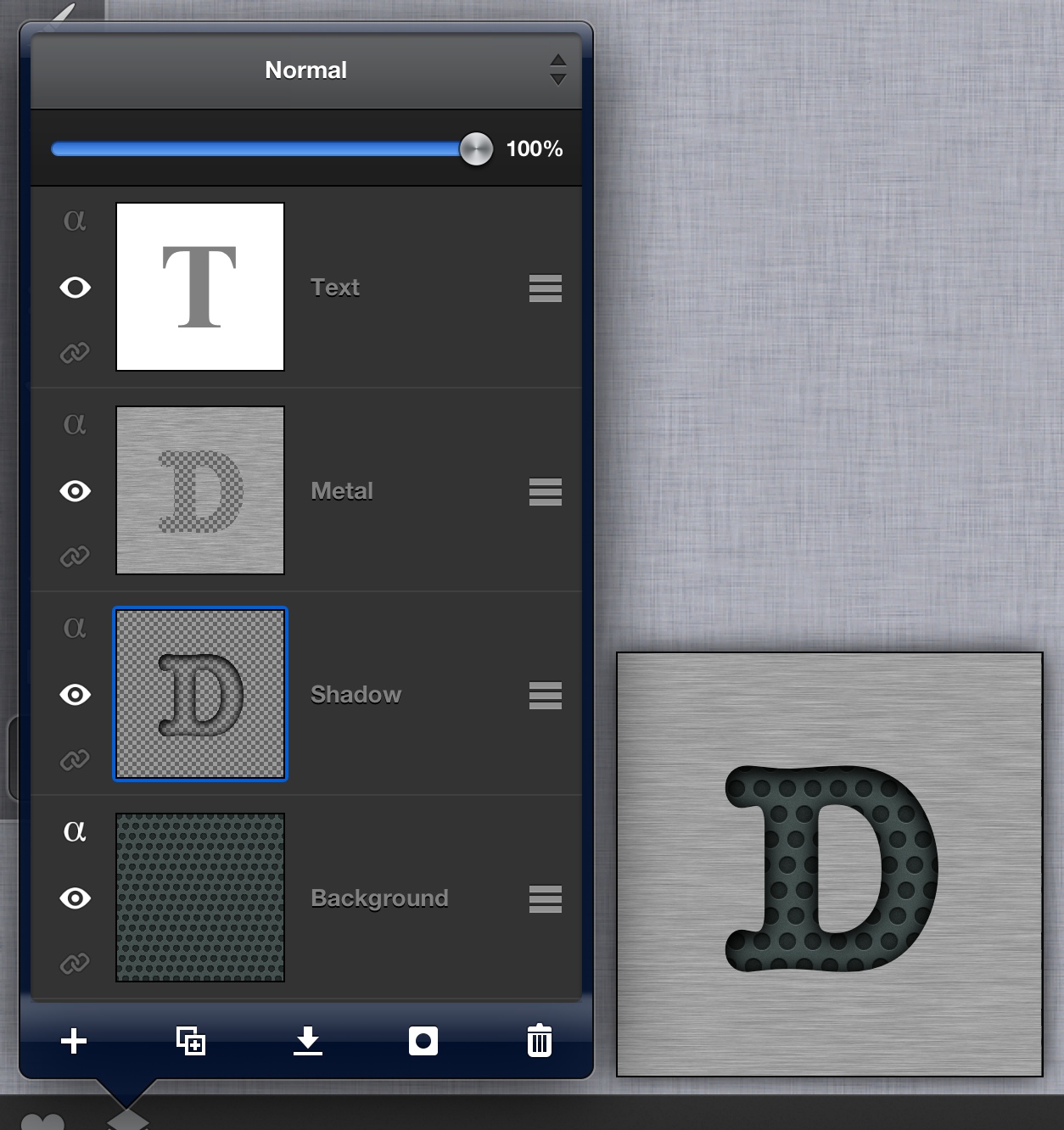
7. Finally let's add a 3d looking to "Metal" texture. Create new layer below "Text" layer, fill it with White. Unhide and activate "Text" layer, and Merge it down with White layer. Tap Filters->Blur->Blur. Tap Filters->Stylize->Emboss, and set Angle:0, Strength: 10, Invert:ON. Apply filter.
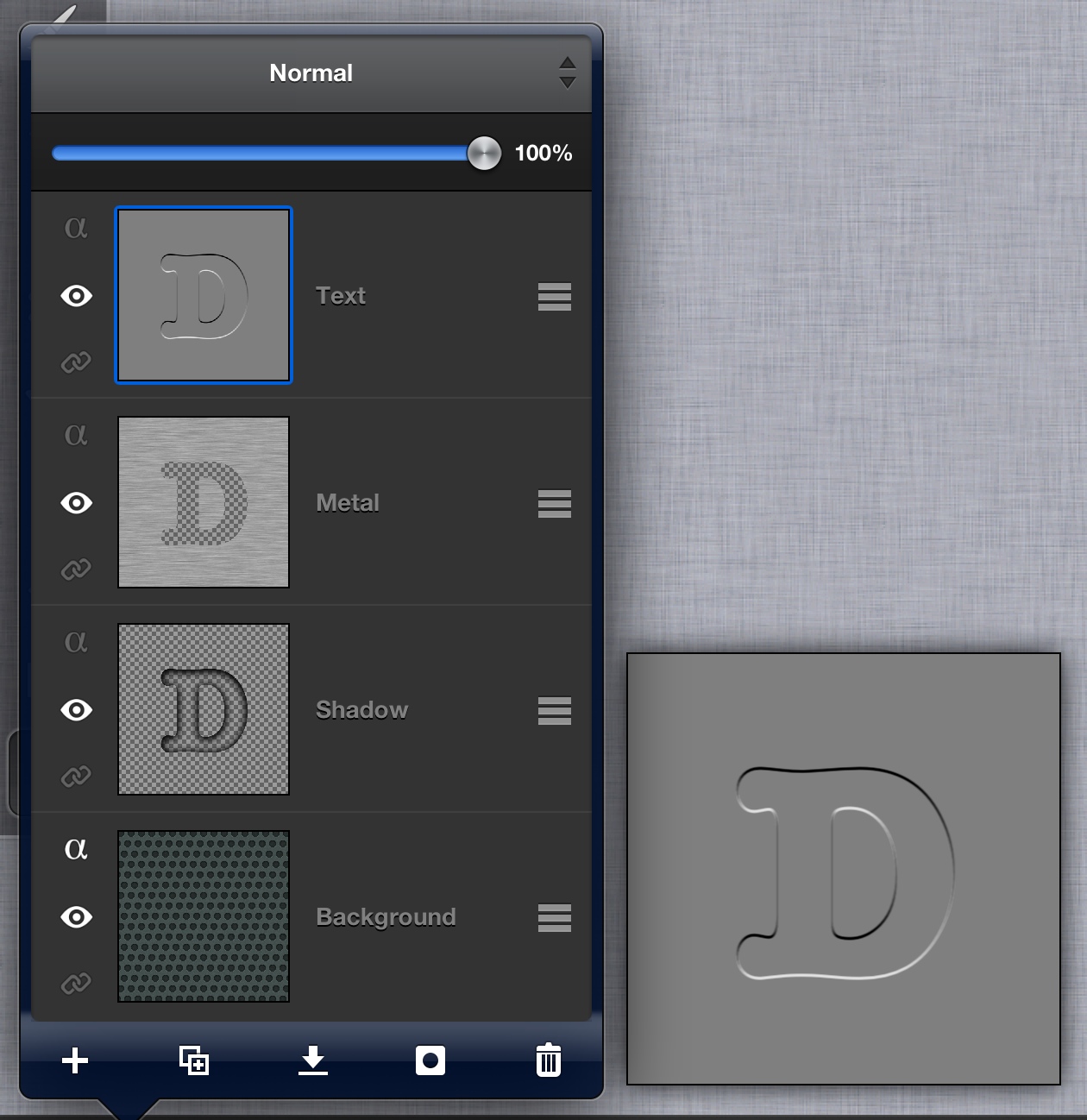
8. Change the upper layer ("Text") blending mode to "Soft Light". To increase 3d effect, move layer 1px down: Tap Edit->Transform layer->Move, and tap <Down arrow> one time, and <Apply>. You can merge down the upper layer.